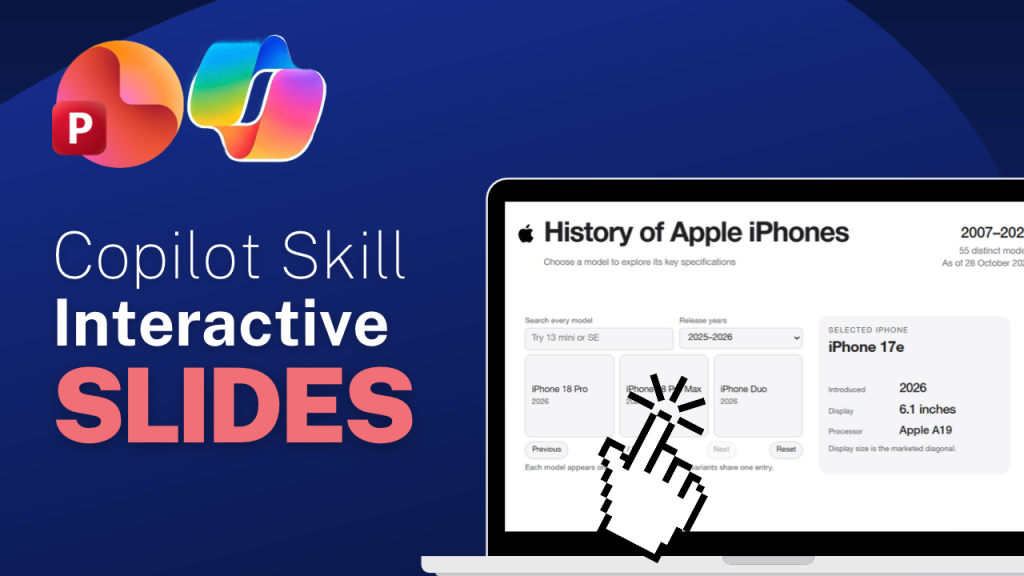
A Copilot Skill in PowerPoint is a saved instruction file (SKILL.md) stored in OneDrive that gives Microsoft Copilot structured, repeatable rules for presentation tasks. Instead of retyping long prompts every time, users can call saved skills instantly using an @mention or the + (Add) menu in the Copilot pane.
| Property / Aspect | Technical Specification | Workflow Advantage |
|---|---|---|
| File Structure | SKILL.md markdown file inside a matching folder |
No coding, macros, or development skills required |
| Storage Location | OneDrive > Documents > Copilot > Microsoft PowerPoint > skills |
Automatically syncs across your Microsoft 365 PowerPoint apps |
| Activation Shortcut | Type @skill-name directly in the prompt field or use the + menu | Eliminates repetitive prompt engineering for frequent presentation tasks |
| Sharing Scope | Personal to your Microsoft account (stored in individual OneDrive) | Keeps personal design rules intact without altering team workspace settings |
A Skill is a saved instruction that stops you retyping the same prompt to Copilot in PowerPoint every single time. Write the instructions once, save it as a Skill, and call it back up with a single @mention whenever you need it.
Once you’ve built two or three, it starts to feel less like using an AI assistant and more like having your own set of house rules Copilot actually follows.
A Skill gives Copilot structured, reusable instructions for a specific, repeatable task, things like creating an executive summary slide, restructuring a wall of text, or applying your preferred design approach consistently.
Worth being clear on what it isn’t, because the name invites confusion:
It’s an instruction file. That’s genuinely it. Which is exactly why it’s so easy to build one yourself without any development experience.
You can also skip the menu entirely once you know a skill’s name, just type @ followed by the skill name directly in your prompt, the same way you’d mention a colleague.

There are two ways to do this.
However, we’d always recommend the simplest and quickest way, which is to work directly with CoPilot inside PowerPoint.
PowerPoint saves it straight to your personal Skills folder on OneDrive, and it’s instantly available in the skills menu.

We’re always spending time applying animations to our PowerPoint designs. So we thought, why not let Copilot do that for us.
By simply describing what we wanted in the Copilot chat, we were able to create a custom skill that applies fade animation to all text and Fly-In animation to all imagery throughout a deck.
In the image opposite you can see how simple the description is.
If you’d like to try this yourself, just copy the instructions below into your own custom skill:
On this slide please apply a gentle 1-second fade to any text boxes. Set Start to With Previous.
If there is any imagery, please apply the fly-in animation, but make sure you set the direction to come in from whichever side of the slide the image is on. For example, if the image is on the right of the slide, add the fly-in animation and set the direction to come in from the right. Set Start to With Previous.

It couldn’t be easier.
In the CoPilot chat use the @ symbol followed by the name of your skill.
So for our new animation skill we just type ‘@fade-and-slide on all slides please’
Copilot will find the skill for you before you even finish typing the first few letters.
A Skill is a saved instruction, not code, not an add-in, just structured guidance Copilot follows on request.
Use the built-in ones straight from the + menu, or call any skill directly with an @mention.
Build your own either inside the Copilot pane, or manually as a SKILL.md file in your OneDrive Skills folder.
Once you’ve got two or three genuinely useful ones, you’ll stop typing the same instructions from scratch every time.
A Copilot skill in PowerPoint is a reusable, instruction-based capability that gives Copilot explicit rules for completing a specific, repeatable task—called up by name using an @mention rather than retyped each time.
Select the + menu in the prompt field and choose Choose skills, or type @ followed by the skill’s exact name directly into your prompt field.
Either build one directly inside the Copilot pane via Manage skills > Custom skills > Add a skill, or manually create a SKILL.md file inside a matching folder in your OneDrive Skills directory.
Custom skills use a standard Markdown file named SKILL.md. It features a short frontmatter section at the top for the name and description, followed by plain-language instructions in the main body.
No, custom skills are personal to the account that created them and are stored in that user’s private OneDrive folder. They will not automatically appear for colleagues working on shared decks.