
Last updated: October 2026
Rehearse with Coach (also known as Speaker Coach or Presenter Coach) is a built-in, AI-powered practice tool on PowerPoint’s Slide Show tab. It listens through your microphone as you deliver your slides aloud, providing real-time pacing alerts and generating a private post-session report that evaluates pace (WPM), filler words, vocal pitch, slide text recitation, and sensitive language.
| Delivery Metric | What the Report Tells You | How to Improve |
|---|---|---|
| Pace (Speed) | Speaking speed in words per minute (WPM) and changes over time | Slow down on nervous slides and deliberately insert pauses |
| Filler Words | Frequency of crutch words (e.g., "um", "uh", "like", "you know") | Replace verbal fillers with a silent, confident breath or pause |
| Pitch Variation | Flags flat, monotone delivery versus dynamic vocal expression | Mark primary takeaways on slides and lift pitch on core points |
| Originality | Detects whether you are reciting slide body text word-for-word | Reduce on-slide copy and speak conversationally around visuals |
| Language Inclusivity | Screens for non-inclusive terms, profanity, and sensitive slang | Swap informal or culturally sensitive terms with clear professional phrasing |
Rehearse with Coach is a built-in PowerPoint tool that listens to you practise and tells you how you sounded. It tracks your pace, filler words, pitch and more, then hands you a private report afterwards. No audience, no judgement, no extra software.
At The Prezenter, we’ve delivered PowerPoint training to corporate teams for ten years, and this is still one of the features almost nobody knows exists. Which is a shame, because it’s a brilliant fix for anyone nervous about an upcoming pitch or a big room.
It’s most useful for people who need practice but don’t have anyone to practise with. That usually means:
The big advantage is privacy. Practising in front of a colleague can feel exposing. Practising in front of a laptop doesn’t.
You need very little, but each item matters:
It’s also available on iPad and Android tablets, and Microsoft offers a mobile version too, with a report laid out for smaller screens.
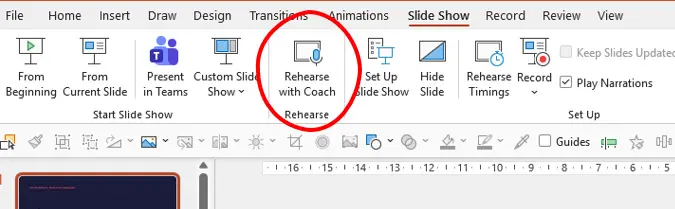
3. Allow PowerPoint to use your microphone if it asks. It can’t listen without permission.
4. Choose whether to show real-time feedback. Tick Show real-time feedback if you want live prompts in the corner of the screen. Leave it unticked to see everything in the report afterwards.
5. Wait for the prompt, then start speaking. PowerPoint shows a message telling you it’s ready. Start talking only once you see it, and present as if the room were full.
6. Finish your run-through and read your report. When you reach the end, PowerPoint opens a rehearsal report. Select Rehearse Again to have another go at the same presentation.
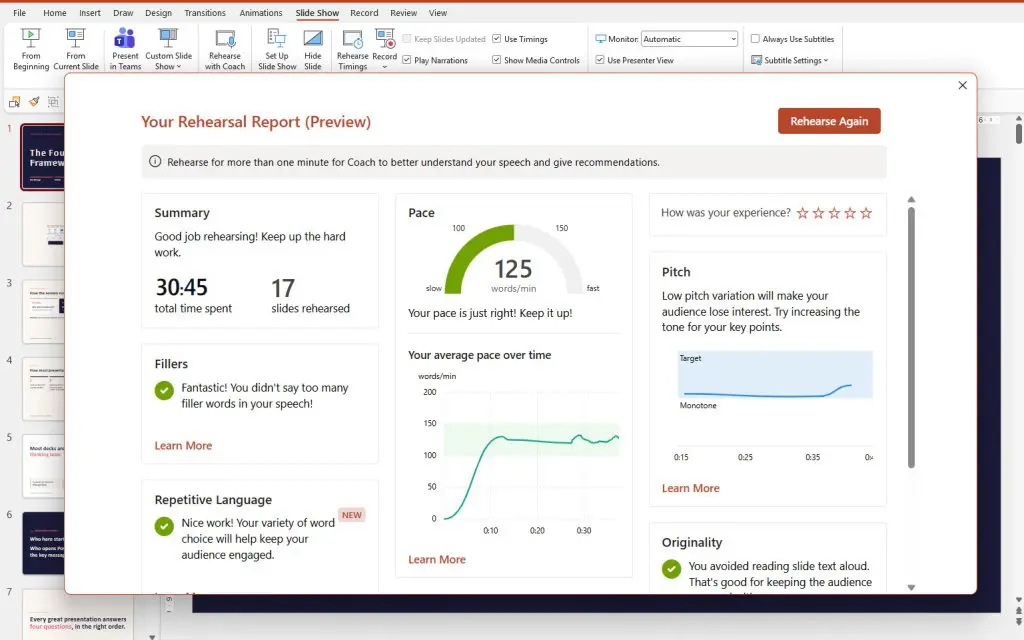
The rehearsal report summarises how you performed across the whole run-through. It starts with the basics, total time, number of slides and your average pace, then breaks your delivery down into the areas below.
A note on pace: PowerPoint tells you when you’re going too fast or too slow rather than demanding one magic number. Watch the pace-over-time view in particular. Most people don’t speed up evenly. They bolt through the nerve-racking bits.
Treat the first run-through as a baseline, not a test. A few habits make the feedback far more useful:
Rehearse with Coach assesses how you sound, not whether your presentation is any good. It can tell you that you said “basically” nineteen times. It can’t tell you that your argument is weak, your structure is muddled, or your slides are cluttered. That’s still a job for a human, or for solid planning before you open PowerPoint.
It’s also an AI tool, so treat the feedback as a strong prompt rather than gospel. If it flags something that’s a deliberate choice, such as repeating a key phrase for emphasis, you’re allowed to ignore it.
And it won’t replace rehearsing in front of a real person at least once. But as a first step, especially for nervous presenters, it’s hard to beat.
Rehearse with Coach is a built-in PowerPoint feature that listens to you practise your presentation and gives feedback on your pace, filler words, pitch, repetitive language, and whether you are reading your slides. It is also known as Speaker Coach or Presenter Coach.
Open your presentation, go to the Slide Show tab, and select Rehearse with Coach in the Rehearse group. Allow microphone access, choose whether to show real-time feedback, wait for the prompt, then start speaking. When you finish, PowerPoint opens a rehearsal report.
It measures your speaking pace in words per minute, use of filler words such as um and uh, pitch and monotone delivery, repetitive words and phrases, whether you are reading directly from your slides, pronunciation, and inclusive or sensitive language.
Yes. Microsoft has used the names Presenter Coach and Speaker Coach for the same tool. In the PowerPoint ribbon the button is labelled Rehearse with Coach.
Rehearse with Coach is available in PowerPoint for Microsoft 365 on Windows and Mac, PowerPoint for the web, and on tablets. Microsoft also offers mobile practice with a report formatted for smaller screens. Exact features can vary by platform and version, so check what your version shows.
It can help by giving you low-pressure, repeatable practice with instant feedback, so you walk into a pitch having already run it several times. It will not replace practising in front of real people, but it is a good first step.