
Create Interactive Slide is a Microsoft Copilot AI skill that generates clickable, full-slide visual models—including timelines, dashboards, comparisons, and process flows—from plain text prompts or source documents. While viewers can explore data points interactively on supported platforms without a Copilot license, slides cannot be edited manually on canvas and render as flat, static images in PDFs, on smartphones, and in print.
| Platform / Export Mode | Can Create / Prompt? | Can Viewers Interact? | Key Restriction |
|---|---|---|---|
| PowerPoint for Windows | Yes | Yes | No manual object editing; prompt-only adjustments |
| PowerPoint for Mac | Yes | Yes (Slide Show only) | Does not function in Presenter View |
| PowerPoint for Web | Yes | Yes | Requires active internet connection |
| PowerPoint Live in Teams | No | Yes (Independent clicks) | Presenter clicks do not sync to attendees |
| Smartphones (iOS / Android) | No | No | Falls back to a static flat screenshot image |
| PDF Document / Print | N/A | No | Renders only the default top-level image state |
Create Interactive Slide is a Copilot skill that builds clickable, full-slide visuals, such as timelines, dashboards and comparisons, from a prompt. It’s clever, and genuinely useful in the right situation. It is not the best thing since sliced bread. You can’t edit the result by hand, it turns into a flat image in PDFs and on phones, and in Teams each attendee only sees their own clicks.
We’ve taught PowerPoint for over ten years at The Prezenter, and we’ve watched plenty of features get oversold in that time. So here’s the balanced version: what it does well, where it falls over, and who should actually bother.
It’s a Copilot skill that creates an interactive slide your audience can click through to reveal steps, context and data. Instead of a static diagram or a 14-row table, you get a visual you can explore, one piece at a time. It works on a full slide, and it sits alongside the other Copilot skills we covered in our Copilot Skills article.
Microsoft’s intended uses include dashboards, timelines, process flows, comparisons and explanations of complex ideas.
Availability: Microsoft is rolling it out in stages and expects the rollout to finish by the end of October 2026. If you can’t see it yet, that’s probably why. It also needs access to Copilot in PowerPoint.
There are two ways in, and both take under a minute to find.
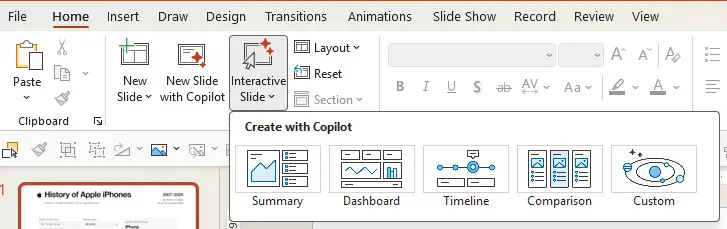
2. Pick a category or go custom. Microsoft’s own screenshots show options such as Summary, Timeline, Dashboard and Comparison, plus a Custom route.
3. Describe what you want. You can point Copilot at content you already have, such as a Word document, an Excel workbook or the rest of your deck.
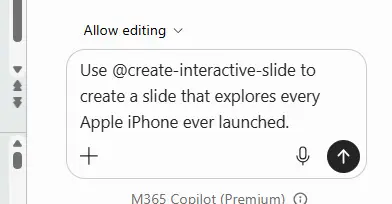
4. Refine by prompting. Ask for changes like “make this a bar chart” or “match my theme colours”. That’s the only way to edit it, as we’ll see below.
5. Present. Click through the slide in Slide Show.
A tip from one early reviewer: don’t just ask Copilot to “make it interactive”. Spell out what the opening screen shows, what can be clicked, what changes after each click, and how to get back. Write it like a small brief, not a wish.
Here’s what my short prompt above created.
Fairly judged, there’s a lot to like:
For a trainer or presenter who wants to turn a wall of detail into something people can explore, that’s a real step forward.
The limits are where the sliced bread claims fall apart. Beyond platform compatibility, these are the issues worth knowing about before you rely on it:
Before this skill, interactivity meant hyperlinks and action buttons, the same tools we used in our interactive PDF article. Here’s the honest comparison.
| Aspect | Create Interactive Slide Skill | Hyperlinks & Action Buttons |
|---|---|---|
| Build Time | Minutes, directly from a prompt | Slower, built and mapped by hand |
| Editing Control | Prompt-only; no manual on-canvas editing | Full manual design and placement control |
| In an Exported PDF | No; flattens into a static image | Yes; links carry through if exported properly |
| License Needed | Copilot to create; none needed to view | None; standard PowerPoint feature |
| Predictability | AI-generated; requires factual checking | 100% predictable; executes exactly what you build |
It’s best for self-serve exploring. Good fits include:
It’s a poor fit for:
Worth trying, not worth rebuilding your workflow around. It’s a smart way to make one complicated slide more engaging, and it will save time where the old trigger-and-hyperlink method would take an afternoon. But today’s limits are real, and the gap between the demos and the day-to-day is wider than most coverage admits.
We don’t feel it’s ready for use in the client work we create yet, but we do hope it’ll expand into a more usable tool because the benefits of presenting in an interactive way are huge.
Our advice: try it on an internal deck first, keep a static backup slide for PDF readers, and check every number yourself.
Create Interactive Slide is a Copilot skill that builds clickable, full-slide visuals such as timelines, dashboards, comparisons and explainers from a text prompt. Viewers click through the slide to reveal steps, context and data.
Select Interactive Slide on the Home or Insert tab of the ribbon, or open the Copilot pane, choose Skills and select Create Interactive Slide. Pick a category or choose custom, describe what you want, then refine the result by prompting Copilot.
No. You need access to Copilot in PowerPoint to create or update interactive slides, but people you share them with can explore them without a Copilot licence.
No. Microsoft says interactive slides are created and updated through Copilot, so every change, even correcting one label, is made by prompting rather than editing the slide directly.
No. In a PDF export, in print, and in PowerPoint on iPhone and Android, an interactive slide appears as a static image. They are interactive in PowerPoint on Windows, Mac and the web, and in PowerPoint for iPad.
The feature is rolling out in stages and Microsoft expects the rollout to finish by the end of October 2026. It also depends on having access to Copilot in PowerPoint and being on a supported update channel. Users on the Semi-Annual Enterprise Channel should expect to wait.